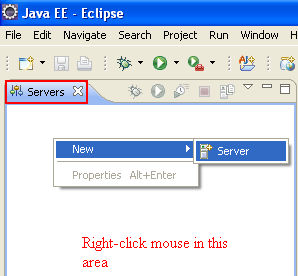
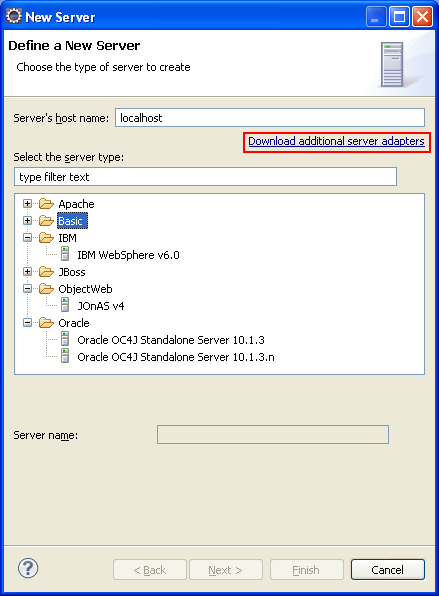
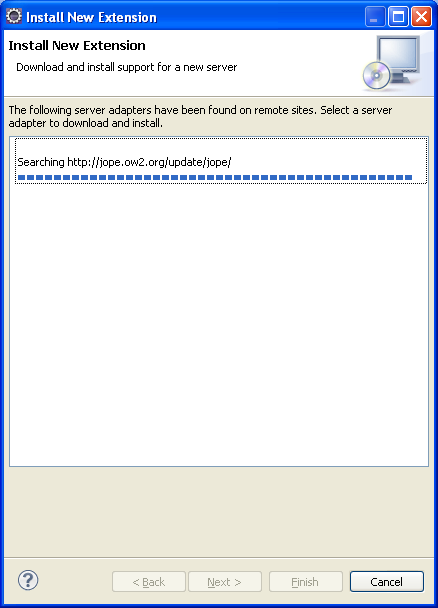
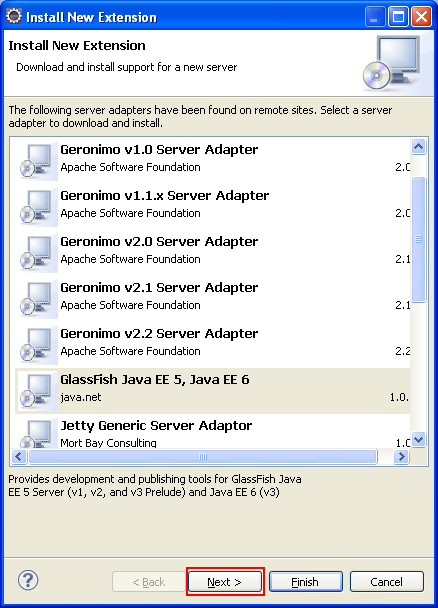
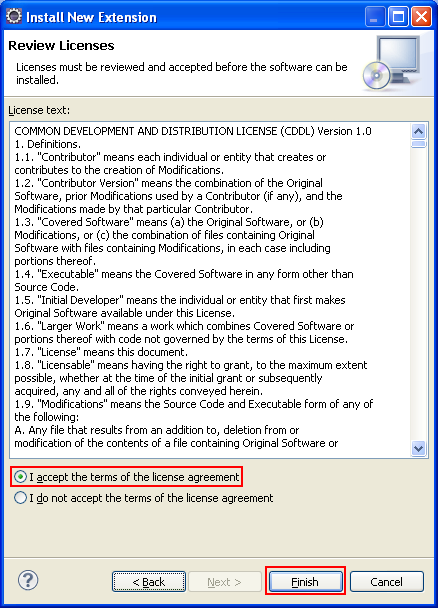
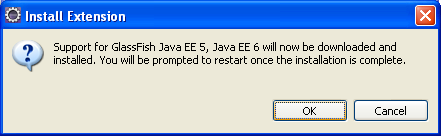
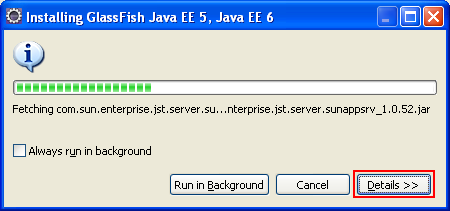
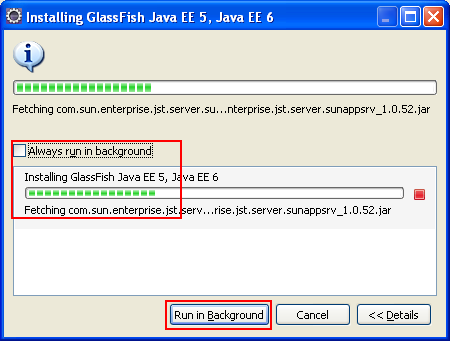
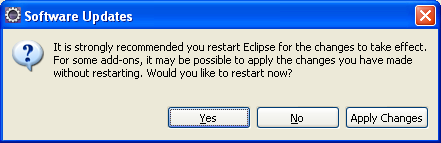
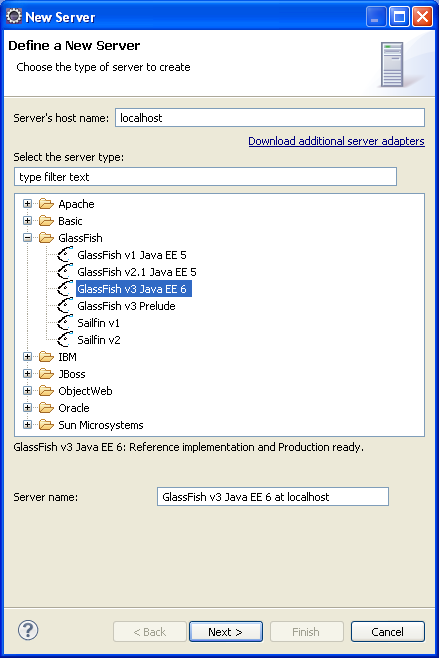
ÿþ<html> <head> <meta http-equiv="Content-Type" content="text/html; charset=unicode" /> <meta http-equiv="Content-Language" content="en-us" /> <style> <!-- p.MsoNormal {margin-top:0mm; margin-right:0mm; margin-bottom:10.0pt; margin-left:0mm; line-height:115%; font-size:12.0pt; font-family:"Times New Roman","serif";} --> </style> <title>steps on how to add glassfish webserver to Eclipse IDE</title> <meta name="keywords" content="web server, web server, hosting, opensource, open source, Internet, data, database, system, technology, computing, web" /> <meta name="description" content="This short tutorial shows you how to add glassfish and other web server to Eclipse integrated development environment (IDE)" /> </head> <body lang="EN-US" topmargin="20" leftmargin="20" rightmargin="20" bottommargin="20"> <div class="WordSection1"> <p class="MsoNormal" style="margin-bottom:0mm;margin-bottom:0; line-height:100%; margin-top:0">&nbsp;</p> <p class="MsoNormal" style="margin-bottom:0mm;margin-bottom:0; line-height:100%; margin-top:0">&nbsp;</p> <h1 align="center" style="margin-bottom:0mm;margin-bottom:0; text-align:center; margin-top:0"><b><font face="Arial"> <span style="line-height:115%;font-weight:bold">Adding Web Server to Eclipse</span></font></b></h1> <p class="MsoNormal" style="margin-bottom:0mm;margin-bottom:0; line-height:100%; margin-top:0">&nbsp;</p> <p class="MsoNormal" style="margin-bottom:0mm;margin-bottom:0; line-height:100%; margin-top:0">&nbsp;</p> <p class="MsoNormal" style="margin-bottom:0mm;margin-bottom:0; line-height:100%; margin-top:0">&nbsp;</p> <table border="0" width="100%"> <tr> <td>&nbsp;<div align="center"><script src="http://tag.contextweb.com/TagPublish/getjs.aspx?action=VIEWAD&cwrun=200&cwadformat=160X600&cwpid=527221&cwwidth=160&cwheight=600&cwpnet=1&cwtagid=85438"></script></div> <div align="left">&nbsp;</div> </td> <td width="1183"> <p class="MsoNormal" style="margin-bottom:0mm;margin-bottom:0; line-height:100%; margin-top:0"> <font size="3" face="Arial"><span style="font-size:12.0pt;line-height:115%"> In this tutorial we will learn on how to add new web servers to Eclipse. The web server to be added is GlassFish. Make sure the computer used to complete this task is connected to the Internet with acceptable speed.</span></font></p> <p class="MsoNormal" style="margin-bottom:0mm;margin-bottom:0; line-height:100%; margin-top:0"> <font size="3" face="Arial"><span style="font-size:12.0pt;line-height:115%"> Firstly, launch Eclipse IDE. Click <b><span style="font-weight:bold">Window</span></b> menu &gt; select <b><span style="font-weight:bold">Show View</span></b> sub menu &gt; select <b><span style="font-weight:bold">Servers</span></b>.</span></font></p> <p class="MsoNormal" style="margin-bottom:0mm;margin-bottom:0; line-height:100%; margin-top:0">&nbsp;</p> <p class="MsoNormal" align="center" style="margin-bottom:0mm;margin-bottom:0; text-align:center; line-height:100%; margin-top:0"><font size="3" face="Arial"> <span style="font-size: 12.0pt;line-height:115%"> <img width="640" height="381" src="addglassfishservertoeclipse_files/addglassfishservertoeclipse001.png" alt="Eclipse - invoking the Servers page" /></span></font></p> <p class="MsoNormal" style="margin-bottom:0mm;margin-bottom:0; line-height:100%; margin-top:0">&nbsp;</p> <p>&nbsp;</td> </tr> </table> <p class="MsoNormal" style="margin-bottom:0mm;margin-bottom:0; line-height:100%; margin-top:0"> &nbsp;</p> <p class="MsoNormal" style="margin-bottom:0mm;margin-bottom:0; line-height:100%; margin-top:0"> <font size="3" face="Arial"><span style="font-size:12.0pt;line-height:115%"> Or, right click mouse anywhere in the <b><span style="font-weight:bold">Servers</span></b> page &gt; select <b><span style="font-weight:bold">New</span></b> menu &gt; select <b><span style="font-weight:bold">Server</span></b> sub menu.</span></font></p> <p class="MsoNormal" style="margin-bottom:0mm;margin-bottom:0; line-height:100%; margin-top:0">&nbsp;</p> <p class="MsoNormal" align="center" style="margin-bottom:0mm;margin-bottom:0; text-align:center; line-height:100%; margin-top:0"><font size="3" face="Arial"> <span style="font-size: 12.0pt;line-height:115%"> <img width="298" height="276" src="addglassfishservertoeclipse_files/addglassfishservertoeclipse002.png" alt="Eclipse - Invoking the Server page" /></span></font></p> <p class="MsoNormal" style="margin-bottom:0mm;margin-bottom:0; line-height:100%; margin-top:0"> <font size="3" face="Arial"><span style="font-size:12.0pt;line-height:115%">&nbsp;</span></font></p> <p class="MsoNormal" style="margin-bottom:0mm;margin-bottom:0; line-height:100%; margin-top:0"> <font size="3" face="Arial"><span style="font-size:12.0pt;line-height:115%"> Next, in <b><span style="font-weight:bold">New Server</span></b> page, notice in the middle box which list the available servers. We are going to download Glassfish server which is not in the list. Type the Server s host name (if needed). In this case we are using <b><span style="font-weight:bold">&#39;localhost</span></b>&#39;. Then, click the <b><span style="font-weight:bold">Download additional server adapters</span></b> link.</span></font></p> <p class="MsoNormal" style="margin-bottom:0mm;margin-bottom:0; line-height:100%; margin-top:0"> <font size="3" face="Arial"><span style="font-size:12.0pt;line-height:115%">&nbsp;</span></font></p> <p class="MsoNormal" align="center" style="margin-bottom:0mm;margin-bottom:0; text-align:center; line-height:100%; margin-top:0"><font size="3" face="Arial"> <span style="font-size: 12.0pt;line-height:115%"> <img width="439" height="596" src="addglassfishservertoeclipse_files/addglassfishservertoeclipse003.png" alt="Eclipse - New Server page - downloading new web servers" /></span></font></p> <p class="MsoNormal" style="margin-bottom:0mm;margin-bottom:0; line-height:100%; margin-top:0"> <font size="3" face="Arial"><span style="font-size:12.0pt;line-height:115%">&nbsp;</span></font></p> <p class="MsoNormal" style="margin-bottom:0mm;margin-bottom:0; line-height:100%; margin-top:0"> <font size="3" face="Arial"><span style="font-size:12.0pt;line-height:115%"> The <b><span style="font-weight:bold">Install New Extension</span></b> wizard will begin, searching available server adapters which are available from the update servers.</span></font></p> <p class="MsoNormal" style="margin-bottom:0mm;margin-bottom:0; line-height:100%; margin-top:0"> <font size="3" face="Arial"><span style="font-size:12.0pt;line-height:115%">&nbsp;</span></font></p> <p class="MsoNormal" align="center" style="margin-bottom:0mm;margin-bottom:0; text-align:center; line-height:100%; margin-top:0"><font size="3" face="Arial"> <span style="font-size: 12.0pt;line-height:115%"> <img width="438" height="608" src="addglassfishservertoeclipse_files/addglassfishservertoeclipse004.png" alt="Eclipse - Install New Extension page - finding new server adapters" /></span></font></p> <p class="MsoNormal" style="margin-bottom:0mm;margin-bottom:0; line-height:100%; margin-top:0"> <font size="3" face="Arial"><span style="font-size:12.0pt;line-height:115%">&nbsp;</span></font></p> <p class="MsoNormal" style="margin-bottom:0mm;margin-bottom:0; line-height:100%; margin-top:0"> <font size="3" face="Arial"><span style="font-size:12.0pt;line-height:115%"> Next, from the list of available server adapter, select <b> <span style="font-weight: bold">Glassfish</span></b> server and click <b><span style="font-weight:bold">Next</span></b>.</span></font></p> <p class="MsoNormal" style="margin-bottom:0mm;margin-bottom:0; line-height:100%; margin-top:0"> <font size="3" face="Arial"><span style="font-size:12.0pt;line-height:115%">&nbsp;</span></font></p> <p class="MsoNormal" align="center" style="margin-bottom:0mm;margin-bottom:0; text-align:center; line-height:100%; margin-top:0"><font size="3" face="Arial"> <span style="font-size: 12.0pt;line-height:115%"> <img width="463" height="608" src="addglassfishservertoeclipse_files/addglassfishservertoeclipse005.png" alt="Eclipse - Install new Extension - selecting GlassFish Java EE 5, Java EE 6 web server adapter" /></span></font></p> <p class="MsoNormal" style="margin-bottom:0mm;margin-bottom:0; line-height:100%; margin-top:0"> <font size="3" face="Arial"><span style="font-size:12.0pt;line-height:115%">&nbsp;</span></font></p> <p class="MsoNormal" style="margin-bottom:0mm;margin-bottom:0; line-height:100%; margin-top:0"> <font size="3" face="Arial"><span style="font-size:12.0pt;line-height:115%"> The download requirements and dependencies process will begin.</span></font></p> <p class="MsoNormal" style="margin-bottom:0mm;margin-bottom:0; line-height:100%; margin-top:0"> &nbsp;</p> <p class="MsoNormal" style="margin-bottom:0mm;margin-bottom:0; line-height:100%; margin-top:0"> &nbsp;</p> <p class="MsoNormal" style="margin-bottom:0mm;margin-bottom:0; line-height:100%; margin-top:0"> &nbsp;</p> <p class="MsoNormal" style="margin-bottom:0mm;margin-bottom:0; line-height:100%; margin-top:0"> &nbsp;</p> <p class="MsoNormal" style="margin-bottom:0mm;margin-bottom:0; line-height:100%; margin-top:0"> &nbsp;</p> <p class="MsoNormal" style="margin-bottom:0mm;margin-bottom:0; line-height:100%; margin-top:0" align="center"> &nbsp;<script type="text/javascript"><!-- google_ad_client = "pub-8089415323104206"; /* 300x250, created 5/16/08javaos */ google_ad_slot = "8146009330"; google_ad_width = 300; google_ad_height = 250; //--> </script><script type="text/javascript" src="http://pagead2.googlesyndication.com/pagead/show_ads.js"> </script></p> <p class="MsoNormal" style="margin-bottom:0mm;margin-bottom:0; line-height:100%; margin-top:0" align="left"> &nbsp;</p> <p class="MsoNormal" style="margin-bottom:0mm;margin-bottom:0; line-height:100%; margin-top:0" align="left"> &nbsp;</p> <p class="MsoNormal" style="margin-bottom:0mm;margin-bottom:0; line-height:100%; margin-top:0" align="left"> &nbsp;</p> <p class="MsoNormal" style="margin-bottom:0mm;margin-bottom:0; line-height:100%; margin-top:0" align="center"> <font face="Arial"> --------------------------------------------------------------------------------------</font></p> <p class="MsoNormal" style="margin-bottom:0mm;margin-bottom:0; line-height:100%; margin-top:0" align="left"> &nbsp;</p> <p class="MsoNormal" align="center" style="margin-bottom:0mm;margin-bottom:0; text-align:center; line-height:100%; margin-top:0"><font size="3" face="Arial"> <span style="font-size: 12.0pt;line-height:115%"> <img width="438" height="608" src="addglassfishservertoeclipse_files/addglassfishservertoeclipse006.png" alt="Eclipse - Install New Extension page - calculating requirements and dependencies" /></span></font></p> <p class="MsoNormal" style="margin-bottom:0mm;margin-bottom:0; line-height:100%; margin-top:0"> <font size="3" face="Arial"><span style="font-size:12.0pt;line-height:115%">&nbsp;</span></font></p> <p class="MsoNormal" style="margin-bottom:0mm;margin-bottom:0; line-height:100%; margin-top:0"> <font size="3" face="Arial"><span style="font-size:12.0pt;line-height:115%"> After the download requirement and dependencies process completed, click <b> <span style="font-weight:bold">Next</span></b>.</span></font></p> <p class="MsoNormal" style="margin-bottom:0mm;margin-bottom:0; line-height:100%; margin-top:0"> <font size="3" face="Arial"><span style="font-size:12.0pt;line-height:115%">&nbsp;</span></font></p> <p class="MsoNormal" align="center" style="margin-bottom:0mm;margin-bottom:0; text-align:center; line-height:100%; margin-top:0"><font size="3" face="Arial"> <span style="font-size: 12.0pt;line-height:115%"> <img width="438" height="608" src="addglassfishservertoeclipse_files/addglassfishservertoeclipse007.png" alt="Eclipse - downloading and installing new GlassFish web server" /></span></font></p> <p class="MsoNormal" style="margin-bottom:0mm;margin-bottom:0; line-height:100%; margin-top:0"> <font size="3" face="Arial"><span style="font-size:12.0pt;line-height:115%">&nbsp;</span></font></p> <p class="MsoNormal" style="margin-bottom:0mm;margin-bottom:0; line-height:100%; margin-top:0"> <font size="3" face="Arial"><span style="font-size:12.0pt;line-height:115%"> Accept the license agreement and click <b><span style="font-weight:bold">Finish</span></b>.</span></font></p> <p class="MsoNormal" style="margin-bottom:0mm;margin-bottom:0; line-height:100%; margin-top:0"> <font size="3" face="Arial"><span style="font-size:12.0pt;line-height:115%">&nbsp;</span></font></p> <p class="MsoNormal" align="center" style="margin-bottom:0mm;margin-bottom:0; text-align:center; line-height:100%; margin-top:0"><font size="3" face="Arial"> <span style="font-size: 12.0pt;line-height:115%"> <img width="438" height="608" src="addglassfishservertoeclipse_files/addglassfishservertoeclipse008.png" alt="Eclipse - accepting the license agreement of the GlassFish web server download" /></span></font></p> <p class="MsoNormal" style="margin-bottom:0mm;margin-bottom:0; line-height:100%; margin-top:0"> <font size="3" face="Arial"><span style="font-size:12.0pt;line-height:115%">&nbsp;</span></font></p> <p class="MsoNormal" style="margin-bottom:0mm;margin-bottom:0; line-height:100%; margin-top:0"> <font size="3" face="Arial"><span style="font-size:12.0pt;line-height:115%"> Click <b><span style="font-weight:bold">OK</span></b> for the server adapter download confirmation prompt window.</span></font></p> <p class="MsoNormal" style="margin-bottom:0mm;margin-bottom:0; line-height:100%; margin-top:0"> <font size="3" face="Arial"><span style="font-size:12.0pt;line-height:115%">&nbsp;</span></font></p> <p class="MsoNormal" align="center" style="margin-bottom:0mm;margin-bottom:0; text-align:center; line-height:100%; margin-top:0"><font size="3" face="Arial"> <span style="font-size: 12.0pt;line-height:115%"> <img width="441" height="136" src="addglassfishservertoeclipse_files/addglassfishservertoeclipse009.png" alt="Eclipse - Install Extension page, new web server adapter download and install prompt page" /></span></font></p> <p class="MsoNormal" style="margin-bottom:0mm;margin-bottom:0; line-height:100%; margin-top:0"> <font size="3" face="Arial"><span style="font-size:12.0pt;line-height:115%">&nbsp;</span></font></p> <p class="MsoNormal" style="margin-bottom:0mm;margin-bottom:0; line-height:100%; margin-top:0"> <font size="3" face="Arial"><span style="font-size:12.0pt;line-height:115%"> The Glassfish download and installation will begin. Click <b> <span style="font-weight:bold">Details</span></b> for the details process.</span></font></p> <p class="MsoNormal" style="margin-bottom:0mm;margin-bottom:0; line-height:100%; margin-top:0"> <font size="3" face="Arial"><span style="font-size:12.0pt;line-height:115%">&nbsp;</span></font></p> <p class="MsoNormal" align="center" style="margin-bottom:0mm;margin-bottom:0; text-align:center; line-height:100%; margin-top:0"><font size="3" face="Arial"> <span style="font-size: 12.0pt;line-height:115%"> <img width="450" height="211" src="addglassfishservertoeclipse_files/addglassfishservertoeclipse010.png" alt="Eclipse - the GlassFish Java EE 5 and 6 web server installation begins" /></span></font></p> <p class="MsoNormal" style="margin-bottom:0mm;margin-bottom:0; line-height:100%; margin-top:0"> <font size="3" face="Arial"><span style="font-size:12.0pt;line-height:115%">&nbsp;</span></font></p> <p class="MsoNormal" style="margin-bottom:0mm;margin-bottom:0; line-height:100%; margin-top:0"> <font size="3" face="Arial"><span style="font-size:12.0pt;line-height:115%"> The task can be set to be done at the background by clicking the <b> <span style="font-weight:bold">Run in Background</span></b> button.</span></font></p> <p class="MsoNormal" style="margin-bottom:0mm;margin-bottom:0; line-height:100%; margin-top:0"> <font size="3" face="Arial"><span style="font-size:12.0pt;line-height:115%">&nbsp;</span></font></p> <p class="MsoNormal" align="center" style="margin-bottom:0mm;margin-bottom:0; text-align:center; line-height:100%; margin-top:0"><font size="3" face="Arial"> <span style="font-size: 12.0pt;line-height:115%"> <img width="450" height="341" src="addglassfishservertoeclipse_files/addglassfishservertoeclipse011.png" alt="Eclipse - the GlassFish web server installation can be suppressed to be done at the background" /></span></font></p> <p class="MsoNormal" style="margin-bottom:0mm;margin-bottom:0; line-height:100%; margin-top:0"> <font size="3" face="Arial"><span style="font-size:12.0pt;line-height:115%">&nbsp;</span></font></p> <p class="MsoNormal" style="margin-bottom:0mm;margin-bottom:0; line-height:100%; margin-top:0"> <font size="3" face="Arial"><span style="font-size:12.0pt;line-height:115%"> Finally, restart Eclipse in order the new downloaded and installed Glassfish server take effect.</span></font></p> <p class="MsoNormal" style="margin-bottom:0mm;margin-bottom:0; line-height:100%; margin-top:0"> <font size="3" face="Arial"><span style="font-size:12.0pt;line-height:115%">&nbsp;</span></font></p> <p class="MsoNormal" align="center" style="margin-bottom:0mm;margin-bottom:0; text-align:center; line-height:100%; margin-top:0"><font size="3" face="Arial"> <span style="font-size: 12.0pt;line-height:115%"> <img width="441" height="143" src="addglassfishservertoeclipse_files/addglassfishservertoeclipse012.png" alt="Eclipse - restarting the Eclipse in order the new installation will take effect" /></span></font></p> <p class="MsoNormal" style="margin-bottom:0mm;margin-bottom:0; line-height:100%; margin-top:0"> <font size="3" face="Arial"><span style="font-size:12.0pt;line-height:115%">&nbsp;</span></font></p> <p class="MsoNormal" style="margin-bottom:0mm;margin-bottom:0; line-height:100%; margin-top:0"> <font size="3" face="Arial"><span style="font-size:12.0pt;line-height:115%"> Now, in the <b><span style="font-weight:bold">New Server</span></b> page, Glassfish server will be visible in the list of the available servers that are associated to Eclipse and ready to be used.</span></font></p> <p class="MsoNormal" style="margin-bottom:0mm;margin-bottom:0; line-height:100%; margin-top:0"> <font size="3" face="Arial"><span style="font-size:12.0pt;line-height:115%">&nbsp;</span></font></p> <p class="MsoNormal" align="center" style="margin-bottom:0mm;margin-bottom:0; text-align:center; line-height:100%; margin-top:0"><font size="3" face="Arial"> <span style="font-size: 12.0pt;line-height:115%"> <img width="439" height="658" src="addglassfishservertoeclipse_files/addglassfishservertoeclipse013.png" alt="Eclipse - GlassFish web servers are visible in the New Server page that are ready to be used" /></span></font></p> <p class="MsoNormal" style="margin-bottom:0mm;margin-bottom:0; line-height:100%; margin-top:0"> <font size="3" face="Arial"><span style="font-size:12.0pt;line-height:115%">&nbsp;</span></font></p> <p class="MsoNormal" style="margin-bottom:0mm;margin-bottom:0; line-height:100%; margin-top:0"> <font size="3" face="Arial"><span style="font-size:12.0pt;line-height:115%">&nbsp;</span></font></p> <hr color="#FF0000"> <p class="MsoNormal" style="line-height: 100%; margin-top: 0; margin-bottom: 0" align="center"> <font face="Arial" size="5"> <a title="The Java and open source applications" target="_top" href="http://www.javaguicodexample.com/"> Back to Main</a></font><p class="MsoNormal" style="line-height: 100%; margin-top: 0; margin-bottom: 0" align="center"> &nbsp;<p class="MsoNormal" style="line-height: 100%; margin-top: 0; margin-bottom: 0" align="center"> &nbsp;<script type="text/javascript"><!-- google_ad_client = "pub-8089415323104206"; /* 728x15, created 5/16/08javaos */ google_ad_slot = "3545464564"; google_ad_width = 728; google_ad_height = 15; //--> </script><script type="text/javascript" src="http://pagead2.googlesyndication.com/pagead/show_ads.js"> </script></div> </body> </html>