< Install VS 2005 4 | Index #1 | Index #2 | Build & Run C++ .NET 2 >
INSTALLING MSDN FOR VISUAL STUDIO 2005
-
Finally we come to the end of the Visual Studio 2005 component installation. If there are any errors, you will be notified in this page. For example, this installation failed to install two components because both already installed on the machine. You can also view the error log and the setup log. Click the Finish button.

-
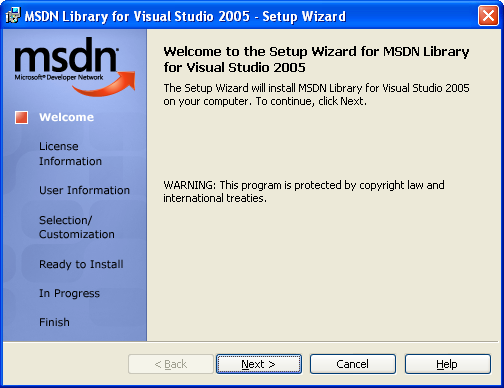
Next run the MSDN setup.exe to install the MSDN library for Visual Studio 2005. It is recommended that you get the latest MSDN version. It can be bought separately. Click the Next button and follow the instruction in every Windows form.
-
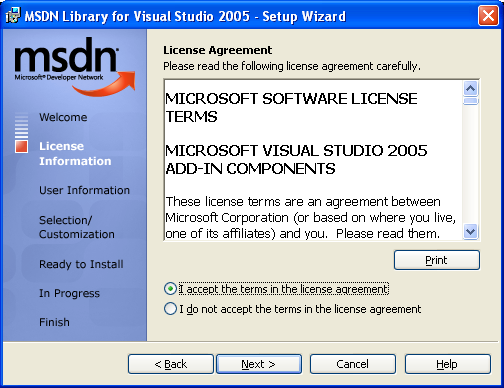
Read and, select the I accept the terms in the license agreement radio button then click Next button.
-
Fill in your personal information if you want to change it. By default it is automatically filled. Click the Next button.

-
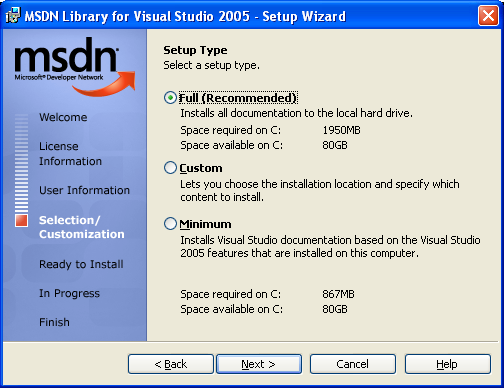
Select the setup type. In this case we select the Full (Recommended) type. If you just want certain part of the MSDN library, select the Custom type. If your system storage does have limitation, select the Minimum that will be based on the Visual Studio 2005 features installed previously. Click the Next button.
-
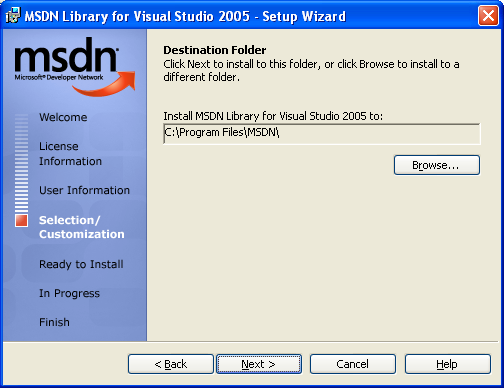
Change the installation path if needed and click Next button.
-
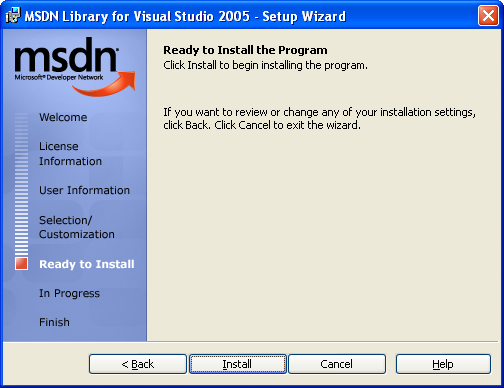
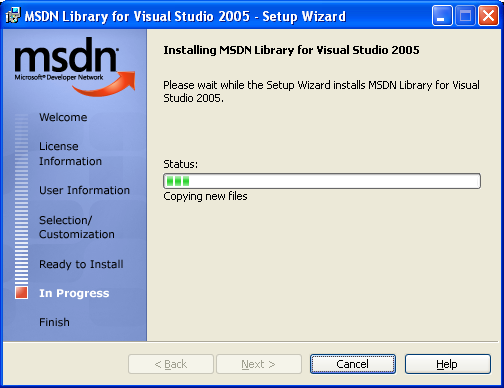
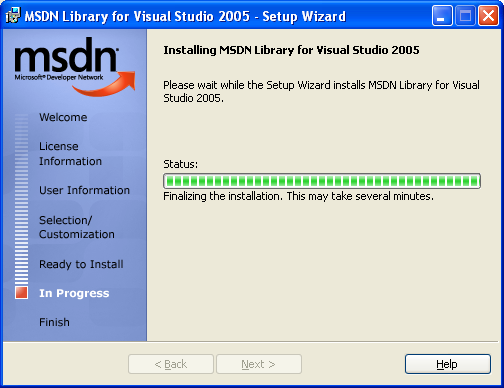
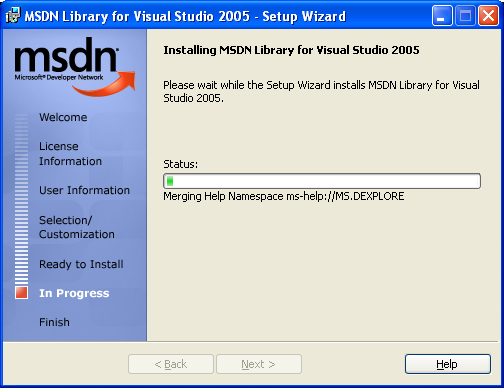
The installation will start. Click the Install button and wait until it complete.

-
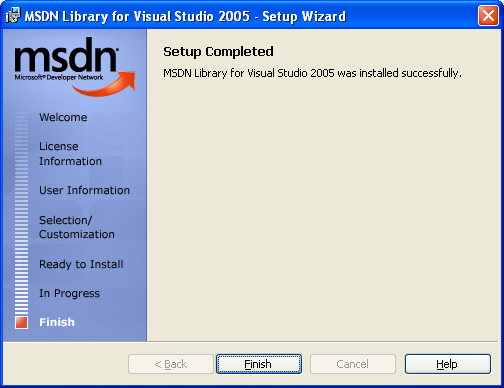
Finally click the Finish button. The MSDN library for Visual Studio installation is completed. You can start using Visual Studio and MSDN, the help file.
-
If you choose the Custom type installation, you can select the components that you want to install as shown in the following Custom setup Windows form.

Part 1 | Part 2 | Part 3 | Part 4 | Part 5 | Part 6 | Part 7 | Part 8